API Keys
API keys provide programmatic access to LangGuard for OTLP trace ingestion and API operations.
Navigation: Settings > API Keys (/settings/api-keys)
Overview
API keys are used for:
- OTLP Ingestion — Send traces directly to LangGuard using the OpenTelemetry protocol
- API Access — Interact with LangGuard programmatically (metrics, events, etc.)
Scopes
Every API key has a scope that limits what it can do. Grant the narrowest scope that works for the job:
| Scope | Grants |
|---|---|
| Ingest | Push trace and log data only — nothing else |
| Read | Read-only access to data via the API |
| Write | Read and modify data via the API |
| Admin | Full administrative access via the API |
Trace and log ingestion endpoints accept only keys with the Ingest scope — a read/write/admin key cannot push trace data. Use a dedicated ingest key for your OTLP exporters and keep API-operation keys separate.
Generating a Key
- Navigate to Settings > API Keys
- Click Generate API Key
- Enter a descriptive name for the key (e.g., "Production OTLP Ingestion")
- Choose a scope that matches what the key needs to do (see Scopes above)
- Choose an expiration — 30, 60, 90, 180, or 365 days
- Click Create
- Copy the key immediately — it is only shown once and cannot be retrieved later
The API key value is displayed only at creation time. If you lose it, you must generate a new key.
Managing Keys
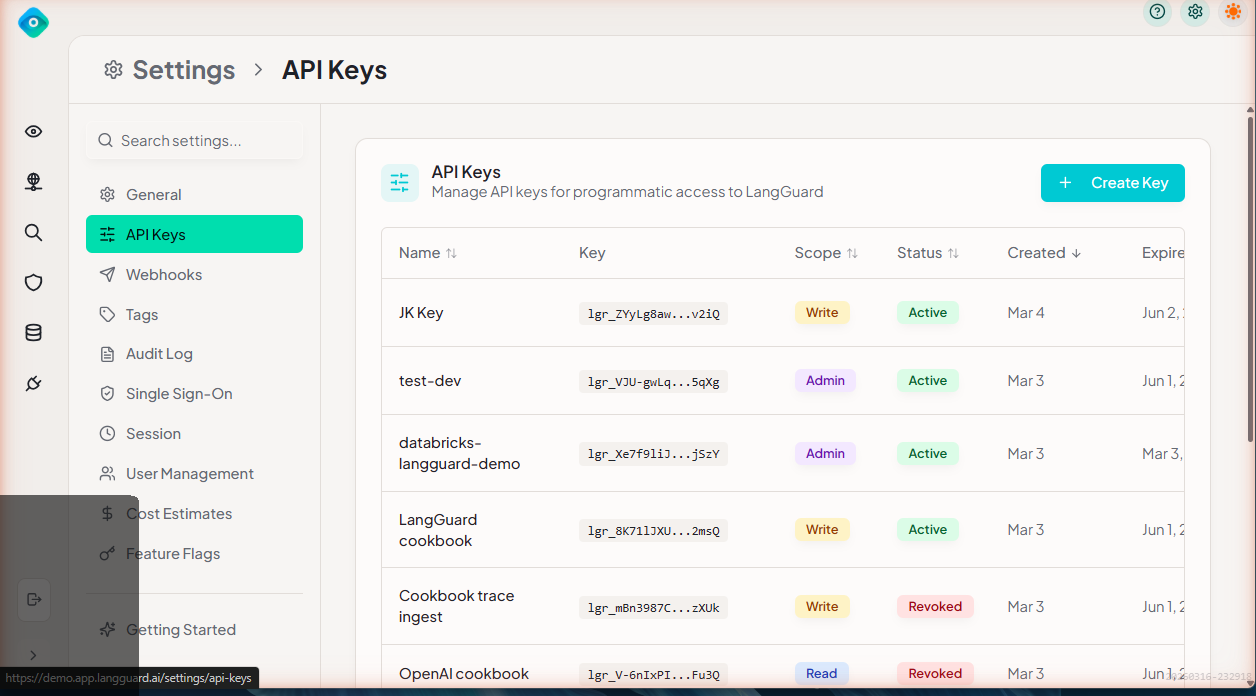
The API keys table shows:
| Column | Description |
|---|---|
| Name | Descriptive name you assigned |
| Scope | The key's permission scope |
| Created | When the key was generated |
| Last Used | Most recent API call using this key |
| Expires | When the key expires |
| Actions | Revoke or delete the key |
Revoking a Key
To revoke a key:
- Find the key in the table
- Click the Revoke or Delete button
- Confirm the action
Revoked keys stop working immediately. Any integrations using the key will fail until updated with a new key.
Using API Keys
OTLP Ingestion
Use your API key as the authorization header when sending OTLP traces:
curl -X POST "https://app.langguard.ai/v1/traces" \
  -H "Authorization: Bearer YOUR_API_KEY" \
  -H "Content-Type: application/json" \
  -d '{ ... }'
See Connecting Integrations for platform-specific setup guides.
Best Practices
- Name keys descriptively — Include the purpose and environment (e.g., "Prod Databricks OTLP")
- Rotate keys periodically — Generate new keys and retire old ones on a regular schedule
- Use separate keys per integration or environment so you can revoke them independently
- Never commit keys to source control — use environment variables or secrets management