Audit Log
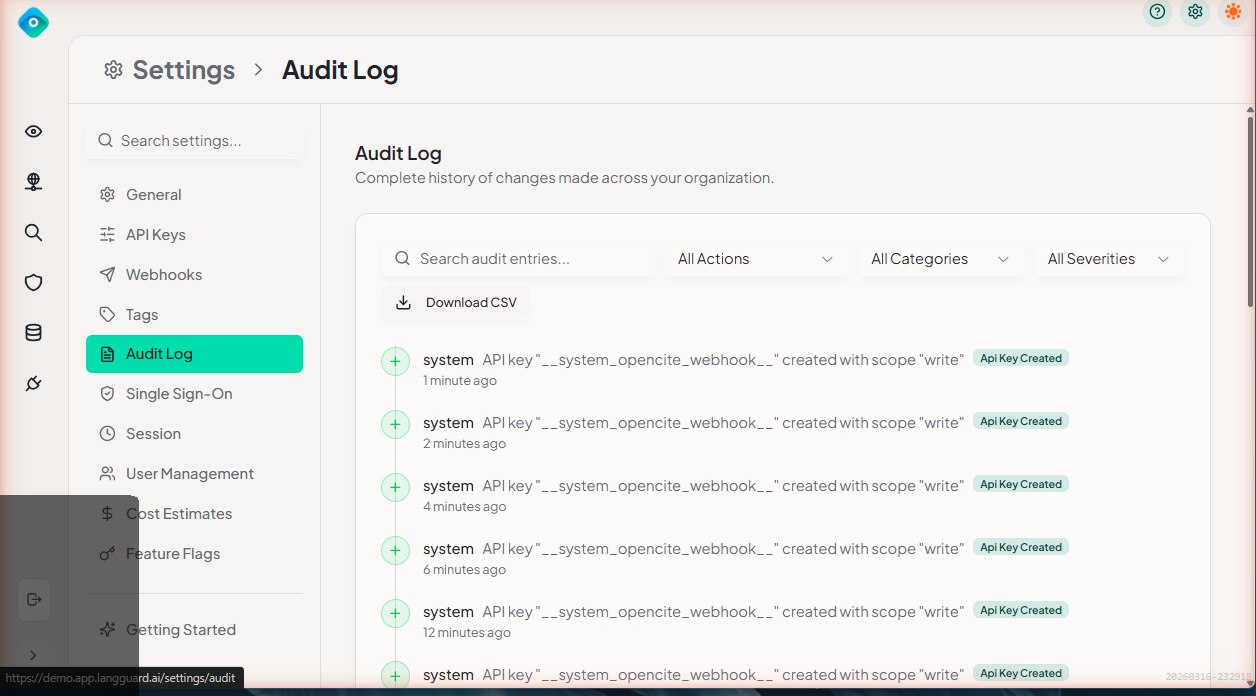
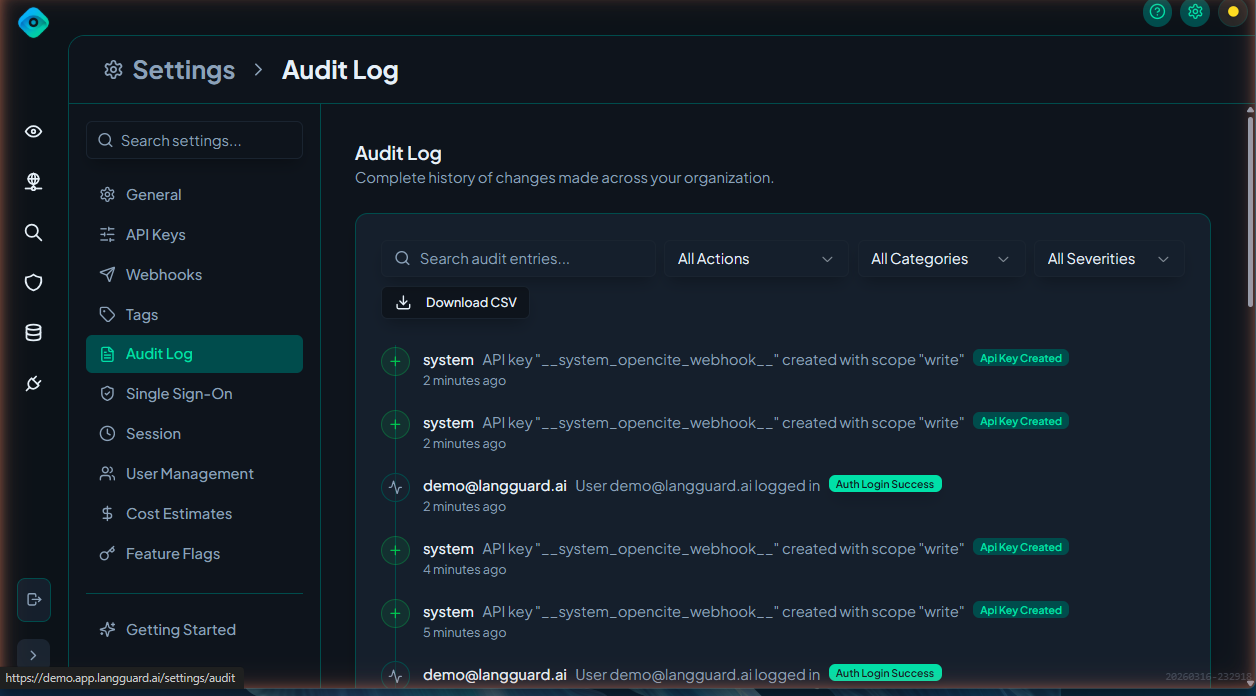
The audit log provides a tamper-proof record of all user and system actions in your LangGuard workspace.
Navigation: Settings > Audit Log (/settings/audit)
Overview
Every significant action in LangGuard is recorded in the audit log. This includes user activity, configuration changes, and system events — giving you a complete trail for compliance and security investigations.
Viewing the Audit Log
The audit log displays events in reverse chronological order:
| Column | Description |
|---|---|
| Timestamp | When the action occurred |
| User | Who performed the action |
| Action | What was done |
| Resource | The affected resource |
| Details | Additional context |
Filtering
Narrow the audit log using filters:
- User — Filter by specific user
- Action Type — Filter by category of action
- Date Range — Select a specific time period
Action Types
| Action Type | Examples |
|---|---|
| Authentication | User login, SSO authentication, failed login attempts |
| Policy Changes | Policy created, updated, enabled, or disabled |
| Integration Changes | Integration added, modified, credentials updated |
| Settings Changes | Workspace settings updated, SSO configured |
| User Management | User invited, role changed, user removed |
| API Key Events | Key created, revoked |
Exporting Audit Data
Export audit log entries for external analysis:
- Apply any desired filters
- Click Export
- Select format (CSV or JSON)
- Download the file
SIEM Forwarding
Forward audit events to your external Security Information and Event Management (SIEM) system in real time.
Configuring SIEM Forwarding
- Navigate to Settings > Audit Log
- Click Configure SIEM Forwarding
- Enter your SIEM endpoint URL
- Configure authentication (API key or bearer token)
- Select which event types to forward
- Click Save
Supported Formats
Audit events are forwarded in JSON format compatible with common SIEM platforms:
- Splunk
- Datadog
- Elastic SIEM
- Microsoft Sentinel
Testing the Connection
After configuring, click Send Test Event to verify your SIEM is receiving events correctly.
Retention
Audit log entries are retained for the duration of your LangGuard subscription. Contact support for specific retention policy details.
Best Practices
- Review the audit log regularly — Check for unexpected actions or unauthorized access
- Enable SIEM forwarding — Centralize audit events alongside your other security logs
- Export before investigations — Save a snapshot of relevant events before making changes
- Use filters effectively — Narrow by user and date range when investigating specific incidents