Session Settings
Control how long user sessions remain active in your LangGuard workspace.
Navigation: Settings > Session (/settings/session)
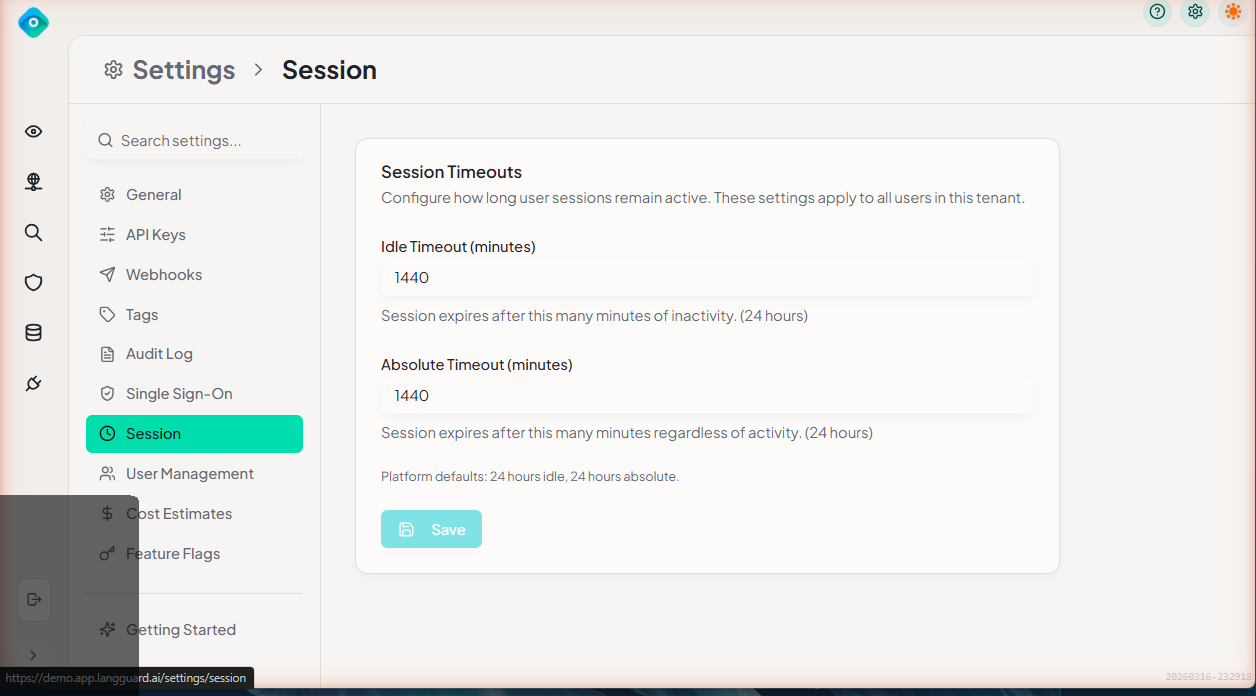
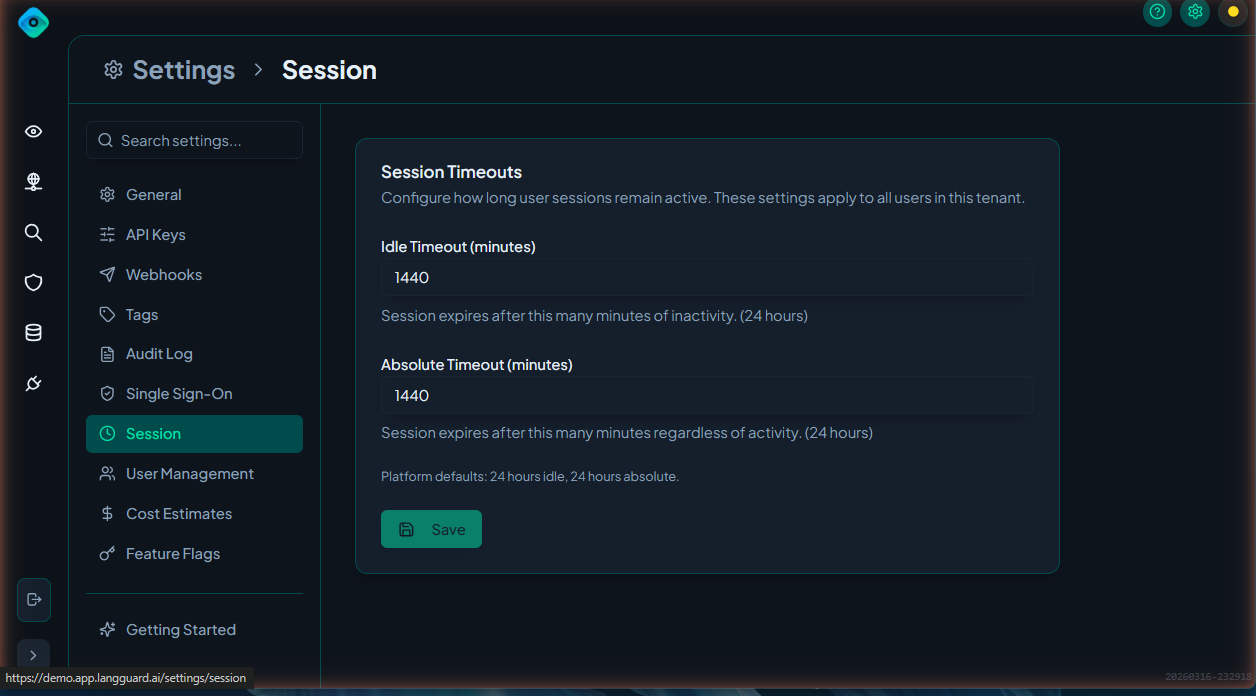
Session Timeout
Set the maximum duration a user session can remain active before requiring re-authentication.
- Navigate to Settings > Session
- Set the Session Timeout duration (e.g., 8 hours, 24 hours, 7 days)
- Click Save
After the timeout expires, users are redirected to the login page.
Idle Timeout
Set how long a session can remain idle (no user activity) before it expires.
- Set the Idle Timeout duration (e.g., 30 minutes, 1 hour, 4 hours)
- Click Save
When a session idles past the timeout, the user is automatically signed out and must re-authenticate.
Persistent Sessions
Enable or disable the Remember Me option on the login page:
- Enabled — Users can check "Remember Me" to extend their session across browser restarts
- Disabled — Sessions always end when the browser is closed
Best Practices
- Set shorter idle timeouts for workspaces handling sensitive data (15–30 minutes)
- Use session timeouts that balance security with usability — 8–24 hours is typical
- Disable persistent sessions if your security policy requires re-authentication on each browser session