Tags Management
Tags help you organize and categorize AI assets across LangGuard. Manage your workspace's tag library from the settings page.
Navigation: Settings > Tags (/settings/tags)
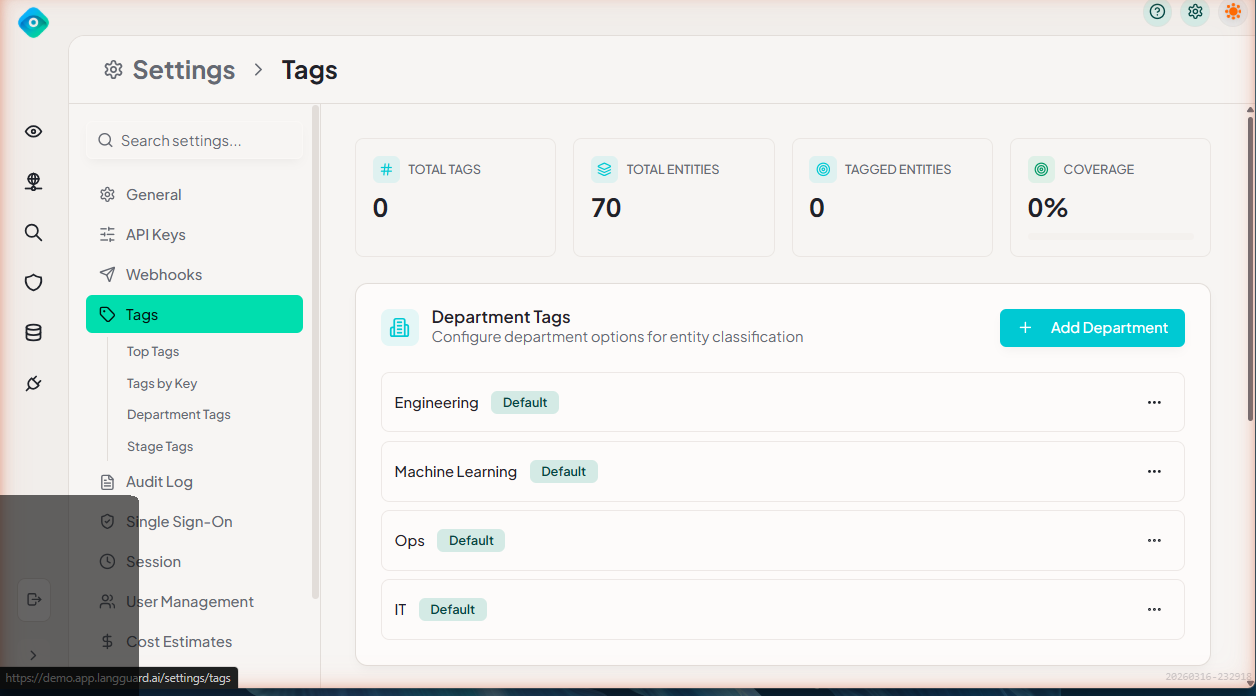
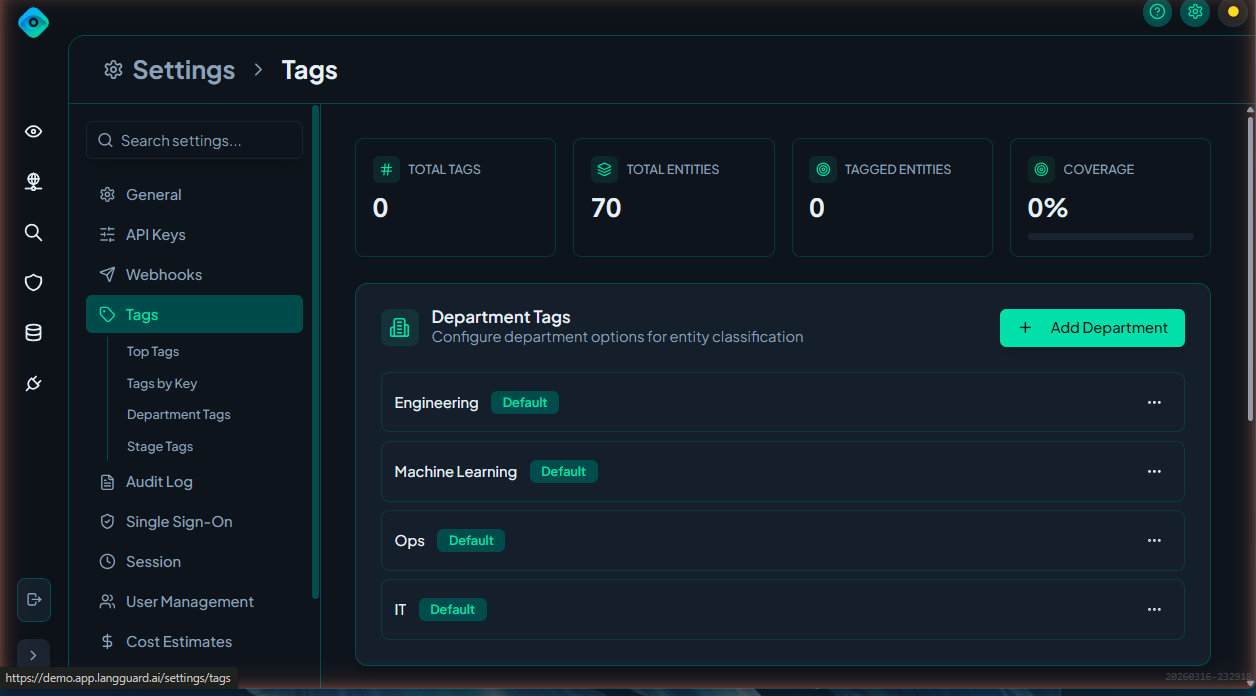
Overview
Tags are labels you apply to AI assets (agents, models, tools) to categorize them by team, environment, compliance status, or any custom dimension. Tags are used across:
- Discovery — Categorize discovered assets
- Data Catalog — Label data entities
Creating Tags
- Navigate to Settings > Tags
- Click Create Tag
- Enter a tag name (e.g., "production", "pii", "team:analytics")
- Select a color for visual identification
- Click Save
Managing Tags
The tags page displays all tags in your workspace:
| Column | Description |
|---|---|
| Name | The tag label |
| Color | Visual color indicator |
| Usage Count | Number of assets using this tag |
| Actions | Edit or delete |
Editing Tags
Click a tag to edit its name or color. Changes apply everywhere the tag is used.
Deleting Tags
Delete unused tags to keep your tag library clean:
- Click the Delete button on the tag
- Confirm the action
- The tag is removed from all assets that had it applied
Deleting a tag removes it from all assets. This cannot be undone.
Applying Tags
Tags are applied to assets from their respective pages:
- In Discovery, select an asset and use the tag picker
- In Data Catalog, click "Add Tag" on an entity detail view
System tags
In addition to the tags you create, LangGuard applies some system tags
automatically from discovered metadata — most notably a department tag on agents.
These power the business-unit grouping in Discovery, so
you can see assets organized by team or department without tagging them by hand.
System tags never overwrite tags you've set manually.
Best Practices
- Use consistent naming conventions — Decide on a format (e.g.,
team:analytics,env:production) and stick to it - Use colors meaningfully — Assign colors by category (e.g., red for compliance, blue for team)
- Clean up unused tags — Periodically review and delete tags with zero usage
- Keep the tag list manageable — Too many tags reduce their usefulness